Changing video speed in CapCut Online is one of the easiest ways to make your videos more dynamic and engaging. Whether you want to speed up a clip to create a fast-paced montage or slow down footage for a cinematic slow-motion effect, CapCut Online provides simple yet powerful speed controls that work directly in your web browser. With no software installation required, you can edit videos quickly from almost any computer while maintaining high-quality results.
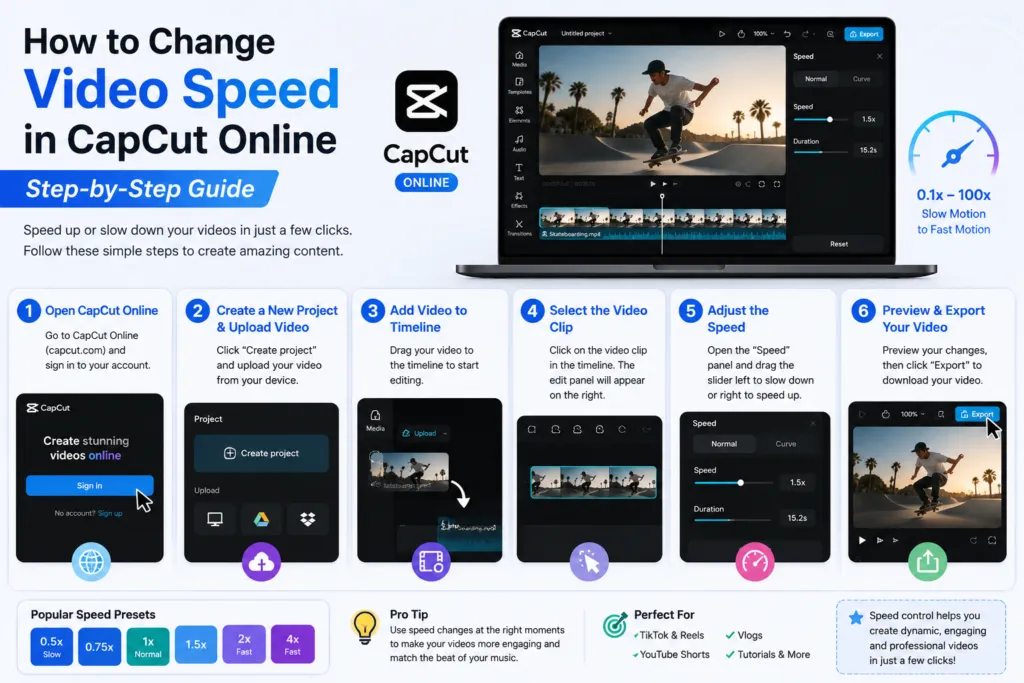
The CapCut Online Video Speed tool is ideal for creating TikTok videos, Instagram Reels, YouTube Shorts, tutorials, gaming clips, vlogs, product demonstrations, and promotional content. By adjusting playback speed, you can emphasise important moments, match your footage to background music, improve storytelling, or create eye-catching visual effects. This step-by-step guide will show you how to change video speed in CapCut Online, use speed controls effectively, and achieve smooth, professional-looking edits with minimal effort.
What Is CapCut Online and Why Should You Use It?
CapCut Online is a cloud-based video editor that lets you create and edit videos directly from your web browser without downloading or installing any software. Because your projects run online, you can access the editor from almost any computer with an internet connection, making it an excellent choice for students, content creators, businesses, and anyone using shared or low-storage devices. Its intuitive interface makes professional video editing accessible to both beginners and experienced editors.
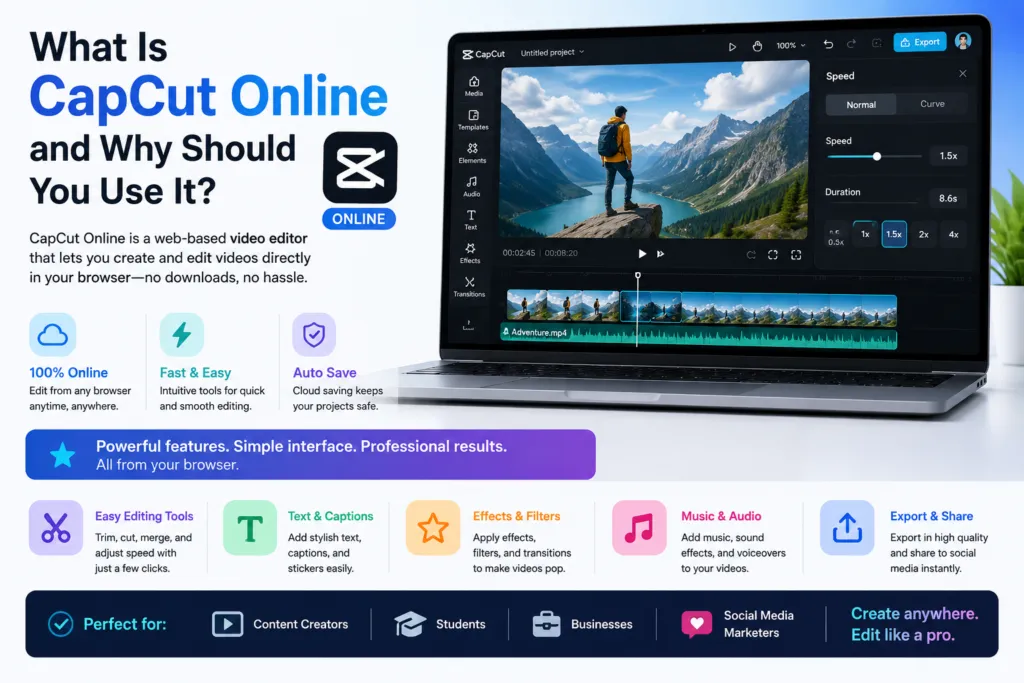
One of the biggest advantages of CapCut Online is its combination of simplicity and powerful editing features. You can easily change video speed, trim and split clips, add transitions, apply filters, insert text and captions, include music and sound effects, and export high-quality videos for platforms such as TikTok, Instagram Reels, YouTube Shorts, Facebook, and other social media channels. With automatic cloud saving and a browser-based workflow, CapCut Online helps you edit faster, collaborate more efficiently, and create professional-quality videos without relying on high-end hardware or desktop editing software.
How to Change Video Speed in CapCut Online: Step-by-Step Guide
Changing the video speed in CapCut Online is quick and requires only a few clicks. Whether you want to create a slow-motion effect, speed up gameplay, make a time-lapse video, or synchronise clips with background music, CapCut Online provides easy-to-use speed controls that work directly in your browser. Follow the steps below to adjust playback speed and create smoother, more engaging videos.
Step 1: Open CapCut Online
Visit the CapCut Online editor in your web browser and sign in to your account. Create a new project to begin editing.
Step 2: Upload Your Video
Click Upload and import the video you want to edit. Once uploaded, drag the clip onto the timeline.
Step 3: Select the Video Clip
Click on the video in the timeline to open the editing options. The right-hand editing panel will display the available video controls, including the Speed tool.
Step 4: Adjust the Playback Speed
Open the Speed settings and move the slider to increase or decrease the playback speed. Speeding up a clip creates fast-paced sequences, while slowing it down produces smooth slow-motion effects that emphasise important moments.
Step 5: Preview Your Changes
Play the edited video to check that the speed transitions look natural and match your intended style. Make small adjustments if necessary before exporting.
Step 6: Export Your Video
When you’re satisfied with the final result, export your project in your preferred resolution, including 1080p or 4K on supported plans, and share it directly to your favourite social media platforms.
Using Speed Presets and Custom Speed Controls
CapCut Online offers both preset speed options and manual speed adjustment, making it suitable for beginners and advanced editors alike.
Common preset speeds include:
- 0.5× for smooth slow-motion effects.
- 1× for normal playback.
- 2× or higher for fast-forward sequences and time-lapse edits.
For greater creative control, use the custom speed controls to fine-tune playback exactly how you want. Depending on the features available in your version of CapCut, you may also have access to Speed Curves, which allow you to gradually accelerate or slow down different sections of a clip. These dynamic speed changes are commonly used in cinematic edits, travel videos, sports highlights, and music videos to create more dramatic visual storytelling.
Why Speed Control Is Important for Video Editing
Adjusting playback speed is more than a visual effect; it helps shape the pacing and emotion of your content. Strategic speed changes keep viewers engaged, emphasise key moments, and create a more polished viewing experience.
Speed control is especially useful for:
- Creating cinematic slow-motion scenes.
- Producing energetic time-lapse sequences.
- Matching video cuts to music beats.
- Highlighting important actions or product details.
- Improving the pacing of tutorials and educational videos.
- Making social media content more engaging.
Whether you’re creating TikTok videos, Instagram Reels, YouTube Shorts, gaming videos, product demonstrations, or vlogs, effective use of speed control can dramatically improve the quality and impact of your edits. Combined with transitions, audio synchronisation, text animations, and visual effects, CapCut Online’s speed tools help you produce professional-looking videos that capture your audience’s attention.
How to Change Video Speed in CapCut Online on Different Devices
One of the biggest advantages of CapCut Online is its cross-platform compatibility. Since the editor runs in a web browser, you can access your projects from multiple devices without installing additional software. Whether you’re editing a short social media clip or a longer video, the speed adjustment tools remain easy to use across supported platforms.
For the best editing experience:
- Windows PCs and Mac computers provide the most responsive performance, precise timeline controls, and larger workspaces for detailed editing.
- Laptops offer an excellent balance between portability and editing efficiency.
- Tablets can handle basic editing tasks while giving you a larger screen than a smartphone.
- Mobile browsers support CapCut Online, but for extended editing sessions, the dedicated CapCut app for Android or CapCut for iPhone and iPad generally provides a smoother touch-based experience.
If you frequently edit high-resolution videos, longer projects, or 4K content, using a desktop or laptop will typically deliver faster previews, smoother playback, and quicker exports.
Common Mistakes to Avoid When Adjusting Video Speed
Although changing playback speed is simple, a few common mistakes can reduce the overall quality of your video.
Speeding Up Clips Too Much
Extremely fast playback can make videos difficult to follow and cause viewers to miss important details. Increase speed only when it improves the pacing of your content.
Ignoring Audio Synchronisation
Changing video speed also affects audio timing. Always check that dialogue, background music, and sound effects remain synchronised after making speed adjustments.
Overusing Speed Effects
Applying multiple speed changes throughout a video can make the edit feel distracting. Use slow motion and fast-forward effects strategically to highlight key moments.
Skipping the Preview
Always preview your project before exporting. Reviewing the final playback helps you identify abrupt transitions, timing issues, or audio problems that can easily be corrected.
Using Outdated Software
Keeping CapCut updated ensures you have access to the latest editing tools, performance improvements, bug fixes, and compatibility updates for a smoother editing experience.
Is CapCut Online Free for Speed Editing?
Yes. CapCut Online includes basic video speed adjustment at no cost. Free users can speed up or slow down video clips directly in the browser, making it a great option for beginners, students, and content creators who need quick edits without installing software.
Some advanced editing features, such as premium templates, AI-powered tools, cloud storage upgrades, and certain creative effects, may require a CapCut Pro subscription. However, the standard speed controls available in the free version are sufficient for most everyday editing tasks, including social media videos, tutorials, vlogs, and presentations.
Benefits of Using the Latest Version of CapCut
Using the latest version of CapCut ensures you receive the newest features, performance enhancements, and security improvements.
Some of the key benefits include:
- Improved playback performance during editing.
- More responsive speed adjustment controls.
- Better video export quality.
- Enhanced browser compatibility.
- Faster rendering and processing.
- Bug fixes and overall stability improvements.
Regular updates also introduce new creative tools that help you produce more polished and professional-looking videos.
Tips for Better Video Speed Editing
To achieve natural-looking results, use speed adjustments thoughtfully rather than applying them throughout the entire video.
Here are a few best practices:
- Apply speed changes during scene transitions for smoother playback.
- Match speed adjustments with background music for better rhythm.
- Use slow motion to highlight important moments.
- Speed up repetitive or less important sections to improve pacing.
- Combine speed effects with transitions, captions, and animations for stronger storytelling.
- Preview your project several times before exporting to ensure everything flows naturally.
Small, well-planned speed adjustments often produce a more professional result than dramatic changes.
Frequently Asked Questions
How do I change video speed in CapCut Online?
Upload your video, add it to the timeline, select the clip, open the Speed tool, adjust the playback speed, preview the changes, and export your finished video.
Can I slow down a video in CapCut Online?
Yes. CapCut Online allows you to reduce playback speed to create smooth slow-motion effects for action scenes, tutorials, and cinematic edits.
Is changing video speed free in CapCut Online?
Yes. Basic speed adjustment features are available in the free version of CapCut Online, while some advanced editing tools are included with CapCut Pro.
Does changing video speed affect audio?
It can. Adjusting playback speed changes audio timing, but CapCut provides tools to help maintain audio quality and synchronisation during editing.
Which device is best for editing video speed?
A Windows PC or Mac offers the best experience thanks to larger screens, precise timeline controls, and improved performance for complex editing projects.
Can I use custom speed curves in CapCut Online?
Yes. Depending on your CapCut plan and available features, you can use advanced speed curves to create smooth acceleration and deceleration effects for more cinematic video editing.
Conclusion
Learning how to change video speed in CapCut Online is an effective way to improve the quality and impact of your videos. Whether you want to create cinematic slow-motion scenes, fast-paced montages, or perfectly timed social media content, CapCut Online makes the process simple with intuitive browser-based editing tools.
Its free speed controls, user-friendly interface, and cross-platform accessibility make it an excellent choice for beginners and experienced creators alike. By using moderate speed adjustments, reviewing your edits carefully, and keeping the editor updated, you can produce engaging, professional-quality videos without complicated software.